Top 5 compared
The best drawing tablets
Sketch, paint and ink on a computer with a pen that draws a heavier line the harder you press.
65 checked · 5 made the cut

As an Amazon Associate we earn from qualifying purchases. It costs you nothing extra. How this works
The top 5 at a glance
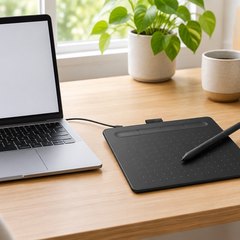
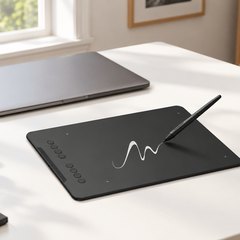
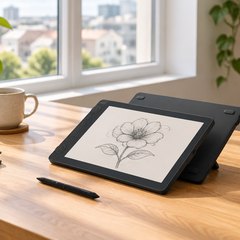
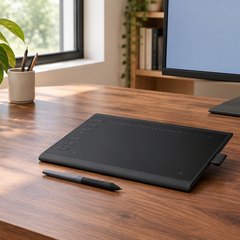
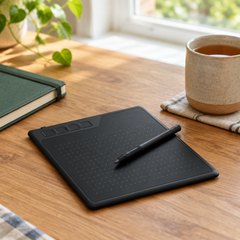
A drawing tablet turns a computer into a sketchbook: the pen senses how hard you press, so lines get thicker and darker just like a pencil. It’s how most digital illustration, comics and animation are made. There are two kinds: a pen tablet is a pad with no screen, and a pen display is a screen you draw on directly.
Drawing on a pad while watching the computer screen feels odd for a day or two and then becomes second nature, and a pad costs less than a tablet with a screen. Every tablet here plugs into a computer or an Android phone, and the pads use pens with no battery to charge.
What matters
- A small pad fits beside a laptop; bigger allows longer strokes.
- Pressure levels and tilt, for natural brush strokes.
- Support for your computer, Chromebook or Android phone.
- Shortcut keys, for undo and brush size.
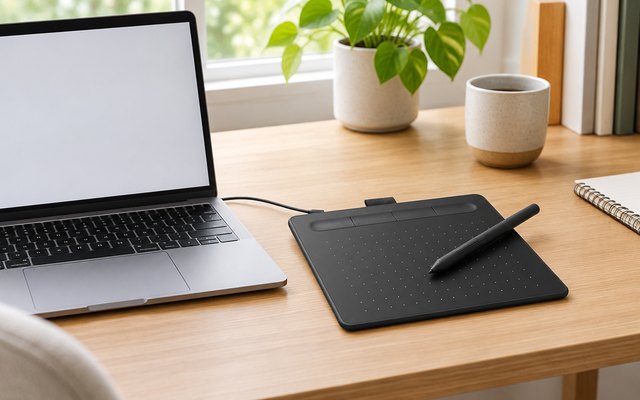
#1Wacom Intuos Small Drawing Tablet
$30–$50
- 2-year Clip Studio Paint license
- Works with Chromebooks too
- Only 4,096 pressure levels
- Four shortcut keys only
A compact 6 × 3.7in pad that leaves room for a keyboard and mouse, with Wacom’s battery-free pen: the tablet powers it through electromagnetic resonance, so the pen has no battery to run flat. It works with Windows, Mac, Chromebooks and Android phones.
What owners say: As a first tablet it wins praise for drawing, design work and online classes, with the hotkeys close at hand. Setup is easy for many and a struggle for others, and a handful couldn’t get it working with their laptop.
A closer look: Registering it with Wacom unlocks the downloadable software offer, which includes a two-year Clip Studio Paint Pro license. The small pad suits a laptop bag and quick sketches; for long painting sessions at a desk, a 10-inch pad gives the arm more room. On Windows and Mac, download Wacom’s driver before plugging it in; Chromebooks and Android phones don’t need one.
Best for: Art software included
- Drawing area
- 6 × 3.7in
- Pressure levels
- 4,096
- Pen tilt
- No tilt
- Shortcut keys
- 4
- Computers
- Windows, Mac, Chromebook
- Phones
- Android 6 or later, with an OTG adapter
- Screen to draw on
- No
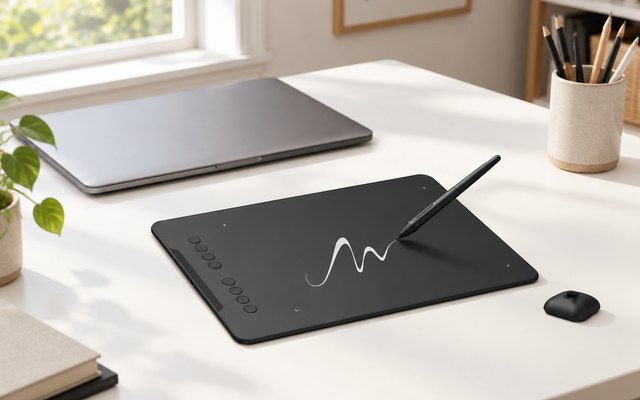
#2XPPen Deco 01 V3 Drawing Tablet
$30–$50
- 16,384 pressure levels
- 60° pen tilt support
- Works with Chromebook and Linux
Ten by 6.25 inches of drawing area, a pen that feels 16,384 levels of pressure and eight shortcut keys, and it works with nearly anything: Windows, Mac, Chromebook, Android and Linux.
What owners say: Owners call it intuitive and quick to set up on Windows and Mac, and it suits online instruction, math teaching included. The pen pressure and buttons divide opinion, and a few units stopped working entirely.
A closer look: Install XPPen’s driver from its website before plugging the tablet in: that’s what unlocks the pressure levels and the shortcut keys. Set the first few keys to undo, brush size and eraser. For an Android phone, the free XPPen Tools app matches the drawing area to the phone’s screen shape.
Best for: The most operating systems
- Drawing area
- 10 × 6.25in
- Pressure levels
- 16,384
- Pen tilt
- Up to 60°
- Shortcut keys
- 8
- Computers
- Windows, Mac, Chromebook, Linux
- Phones
- Android 10 or later
- Screen to draw on
- No
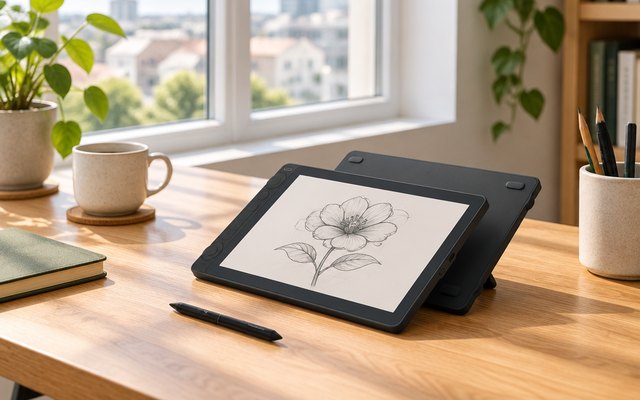
#3HUION Kamvas 13 (Gen 3) Drawing Tablet with Screen
$200–$300
- Draw on a 13.3-inch screen
- Etched anti-glare glass
- Factory color-calibrated screen
Draw straight onto a 13.3-inch 1080p screen whose etched Canvas Glass gives the pen a paper-like bite and cuts glare. Each one is color-calibrated at the factory and comes with its certificate, and two dials and five quiet keys sit within reach for zoom, brush size and undo.
What owners say: The bright, crisp screen and its true-to-life color win the most praise, and some say drawing on it beats paper. Setup is easy for most but not all, Mac users report more trouble, and opinions differ on where the keys sit.
A closer look: A laptop with a full-featured USB-C port runs it from one cable; otherwise the 3-in-1 cable in the box does the job. With no stand in the box it lies flat on the desk, so propping the top edge up an inch or two gives a more comfortable angle for long sessions. It’s a screen for your computer rather than a standalone tablet, so it works only plugged into a computer or an Android phone with video out over USB-C.
Best for: A built-in screen
- Drawing area
- 13.3in screen
- Pressure levels
- 16,384
- Pen tilt
- Up to 60°
- Shortcut keys
- 5 + 2 dials
- Computers
- Windows, Mac, Linux
- Phones
- Android with video out over USB-C (DisplayPort)
- Screen to draw on
- 13.3in, 1080p
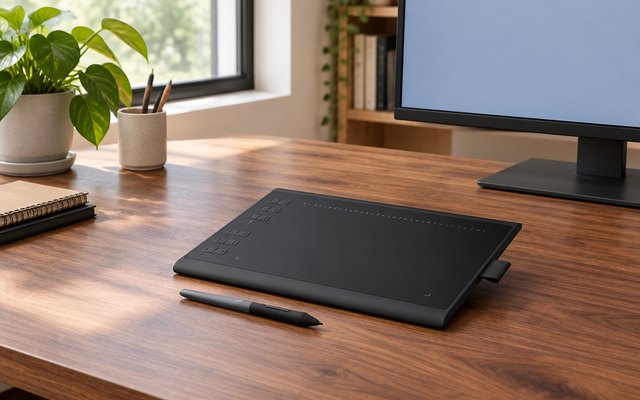
#4HUION Inspiroy H1060P Drawing Tablet
$30–$50
- 12 hard and 16 soft keys
- 60° pen tilt support
- Wide 10-inch drawing area
Twelve hard keys down the side and sixteen soft keys along the top, so a regular user can keep favorite brushes and tools under one finger. It’ll plug into an Android phone too.
What owners say: The roomy pad helps some avoid wrist strain, and beginners and intermediate users find setup easy. Results with software vary: smooth in most programs, laggy or unsupported in a few, such as Paintshop Pro.
A closer look: Left-handed? Turn the tablet around and set left-handed mode in the driver, so the keys sit by the other hand. A Mac needs a USB adapter for its cable, and Android phones connect through an OTG adapter; iPhones and iPads aren’t supported.
Best for: Lots of shortcut keys
- Drawing area
- 10 × 6.25in
- Pressure levels
- 8,192
- Pen tilt
- Up to 60°
- Shortcut keys
- 12 + 16 soft keys
- Computers
- Windows, Mac (with a USB adapter), Linux
- Phones
- Android 6 or later, with an OTG adapter (no cursor on Galaxy S); not iPhone or iPad
- Screen to draw on
- No
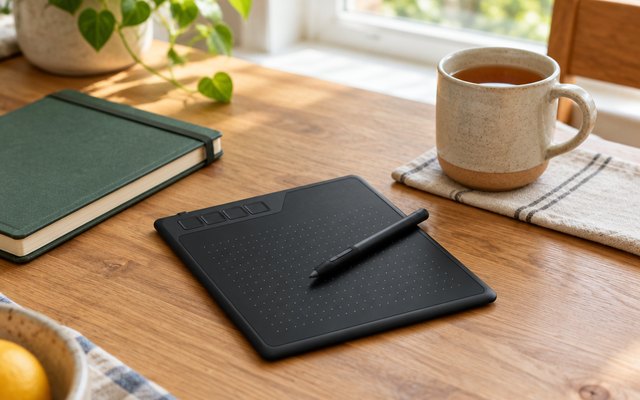
#5GAOMON S620 Drawing Tablet
$20–$30
- Rubber feet stop it sliding
- Four shortcut keys only
Four shortcut keys and a battery-free pen on a slim 6.5 × 4in pad, a way to try digital drawing and see whether it sticks. It also handles signing PDFs and marking up slides.
What owners say: Rhythm-game players like it as much as artists do, and both beginners and seasoned users find the interface simple. Compatibility is patchy for some, with a few laptops refusing it, and others find the shortcut buttons awkwardly placed.
A closer look: Rubber feet on the underside keep the pad from sliding on a smooth desk, and the pen is read from about 10mm above the surface, so the cursor follows it before a stroke lands. Android phones work with it too, though iPhones and iPads don’t.
Best for: Cost friendly
- Drawing area
- 6.5 × 4in
- Pressure levels
- 8,192
- Pen tilt
- –
- Shortcut keys
- 4
- Computers
- Windows, Mac
- Phones
- Android 6 or later; not iPhone or iPad
- Screen to draw on
- No
Side by side
How they compare
Swipe sideways or rotate device to see all 5.
| Feature | #1Wacom Intuos S | #2XPPen Deco 01 V3 | #3HUION Kamvas 13 | #4HUION H1060P | #5GAOMON S620 |
|---|---|---|---|---|---|
| Best overall | Best budget | ||||
| Picked Rating | 9.1 | 8.8 | 8.8 | 8.6 | 8.6 |
| Price | $30–$50 | $30–$50 | $200–$300 | $30–$50 | $20–$30 |
| Drawing area | 6 × 3.7in | 10 × 6.25in | 13.3in screen | 10 × 6.25in | 6.5 × 4in |
| Pressure levels | 4,096 | 16,384 | 16,384 | 8,192 | 8,192 |
| Pen tilt | No tilt | Up to 60° | Up to 60° | Up to 60° | – |
| Shortcut keys | 4 | 8 | 5 + 2 dials | 12 + 16 soft keys | 4 |
| Computers | Windows, Mac, Chromebook | Windows, Mac, Chromebook, Linux | Windows, Mac, Linux | Windows, Mac (with a USB adapter), Linux | Windows, Mac |
| Phones | Android 6 or later, with an OTG adapter | Android 10 or later | Android with video out over USB-C (DisplayPort) | Android 6 or later, with an OTG adapter (no cursor on Galaxy S); not iPhone or iPad | Android 6 or later; not iPhone or iPad |
| Screen to draw on | No | No | 13.3in, 1080p | No | No |
| Best for | Art software included | The most operating systems | A built-in screen | Lots of shortcut keys | Cost friendly |
| Buy now | Amazon | Amazon | Amazon | Amazon | Amazon |
How we checked these
How 65 became 5
We found 65 drawing tablet listings. Seven were the same tablet listed again, in another size or sold with a stand, and 42 were rated too low and/or had too few ratings or sales to compete. That left 16, which we narrowed down step by step:
- Ratings, reviews and salesFor the 16, we then checked the ratings and reviews further, and how many people buy each one. Owners talked most about value for money, then which computers and programs they work with, how easy they are to set up and how well they suit beginners. After these checks, we dropped two more.14 left
- Features weighed upThe 14 left were compared on drawing area, pressure levels, pen tilt, shortcut keys, which computers and phones they work with, and whether you draw on a screen. Once everything was weighed up together, we dropped nine more. We used the makers’ own figures for four of the five here. The HUION Kamvas 13 is here too because it is the only tablet on the list with a screen to draw on.5 made the cut
- Value for moneyEvery drawing tablet here is worth what it costs. A dearer one is only here if it gives you more.
- Safe to buyEvery brand on this list was checked for safety recalls, and none of them has one on record.
Spotted a mistake or something out of date? Tell usBack to top